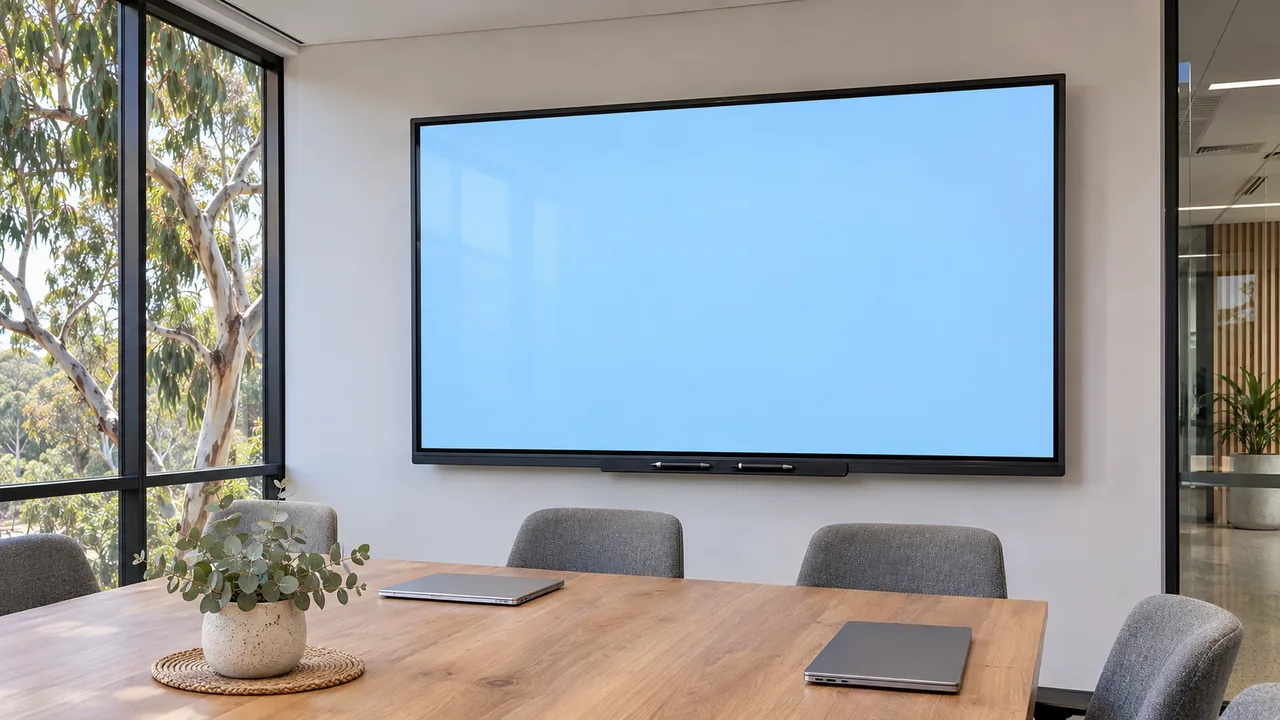
Before ordering an interactive display, ask for a demonstration using your own laptops, typical files and ordinary user permissions. Work through a complete meeting: connect, present, interact, save any required output and disconnect. Record what works and which accessories or settings are needed.
Start with the interactive and electronic whiteboard range, then assess shortlisted configurations against the same tasks. A successful demonstration should answer practical questions about your workplace, not just show a panel’s feature list.
Write a Short Test Script
Choose a few tasks that represent how the room will be used. A presentation-only room needs a different assessment from a training room where people annotate files together.
For a typical workplace demonstration, the script might be:
- Connect an employee laptop and show a normal presentation.
- Switch to a second presenter’s device.
- Display a spreadsheet or document used in everyday work.
- Test touch or annotation if it is part of the brief.
- Save and reopen the required output.
- End the session and remove access to the presenter’s account.
Use sample documents without confidential information. Agree which tasks are essential and which are optional before the demonstration starts.
Start With Your Own Laptops
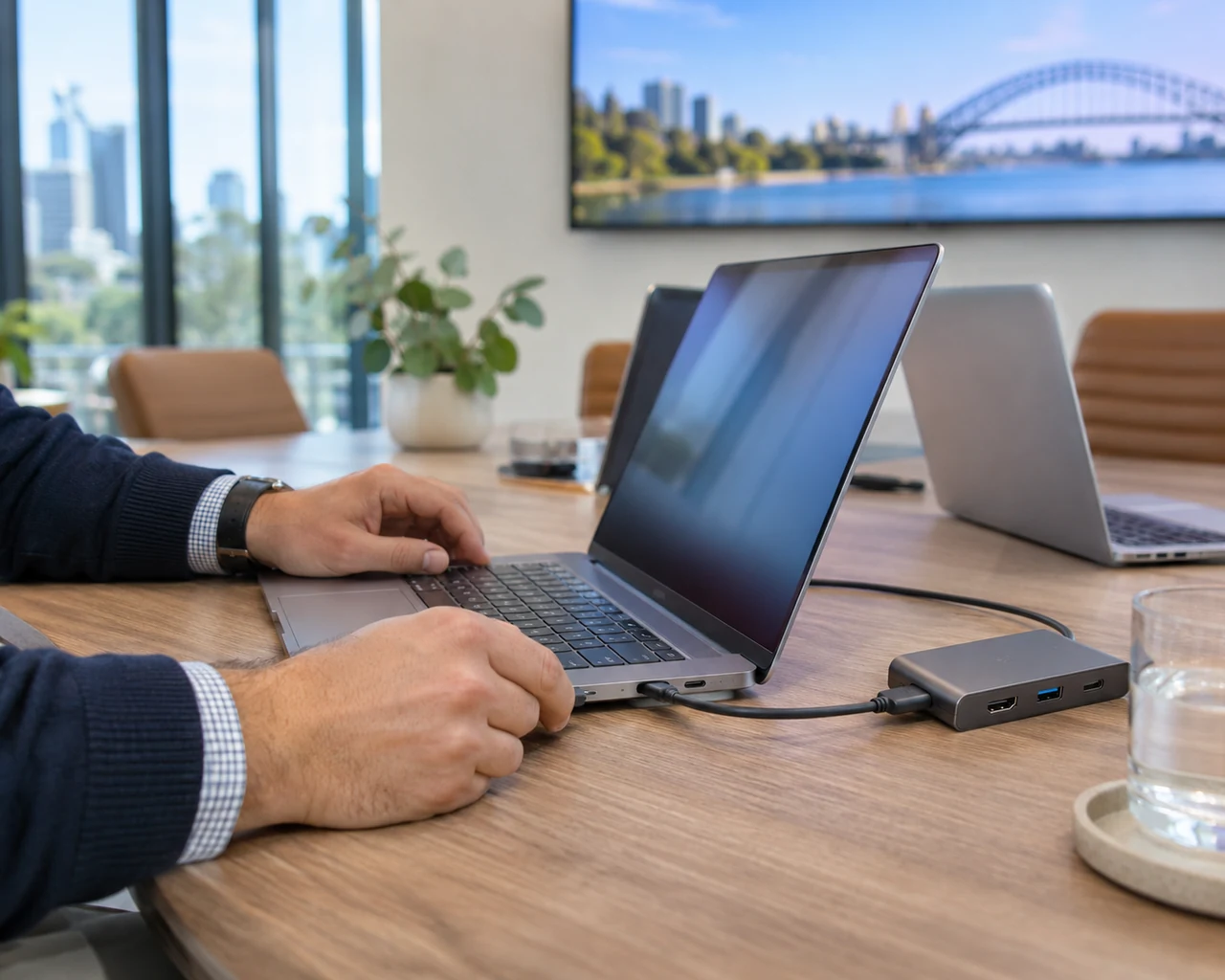
Bring representative devices, including the operating systems and adapters your team actually uses. Ask IT to provide an ordinary user account so the test does not depend on administrator privileges that presenters will not have.
For each connection method, record the cable, adapter, receiver or application used. Confirm which items are included in the quoted configuration and which must be purchased separately.
If wireless sharing is required, ask IT to review the network conditions. A showroom demonstration on an unrestricted network does not confirm that the same arrangement will work on your corporate or guest network.
Test Interaction Separately From Picture and Sound
Getting a laptop picture onto the display is one test. Using the display to control that laptop, annotate its content or share audio can involve different requirements.
Ask the demonstrator to show each required function on your proposed setup. Record any extra connections, software or permissions. Do not assume that a successful screen-sharing test proves touch control or all audio functions will work too.
If you are still deciding between technologies, the guide to interactive whiteboards and interactive displays explains the broader selection questions. Keep this demonstration focused on the tasks your shortlisted system must perform.
Check the Experience From the Room
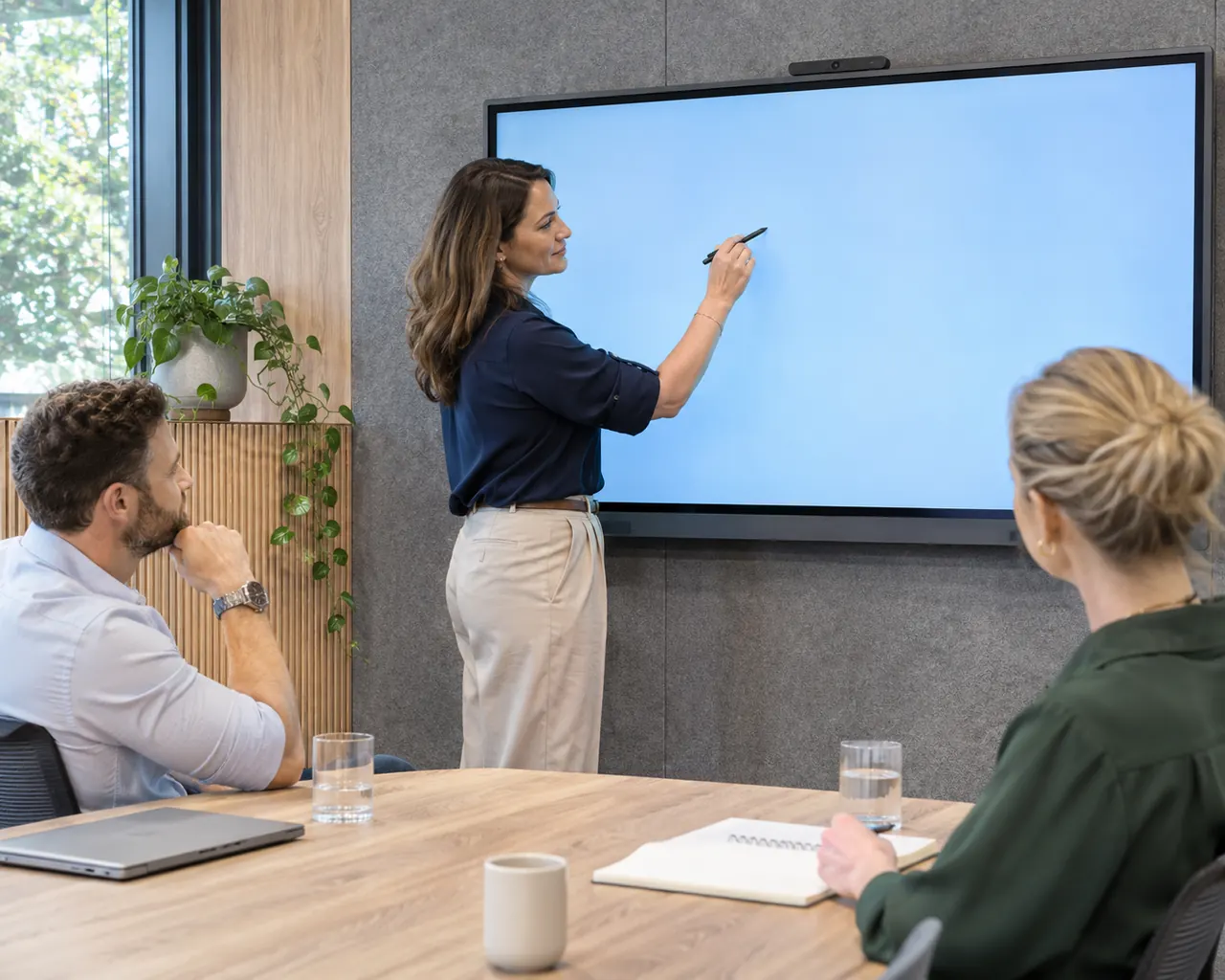
View your sample content from the furthest and most angled seats. Use ordinary document text, not only large promotional slides. Check reflections under the lighting conditions expected in the room.
Ask a typical presenter to use the controls and stylus without continuous coaching. Note whether the proposed mounting arrangement will allow the intended users to reach the required controls.
For hybrid meetings, test the proposed camera, microphones and speakers as a complete configuration. Include a remote participant who can report what they see and hear. Do not assume those components are built into every display.
Finish the Meeting, Then Start Another
Save any notes in the required format and reopen them on a normal staff device. Confirm where the file is stored and whether sharing it requires another account or licence.
Then disconnect and follow the proposed sign-out or session-clearance procedure. Check that the next presenter can start without seeing the previous user’s files or remaining signed into their account.
Record unresolved items with an owner and a next step. An untested requirement should remain open rather than being marked as passed.
Request a Quote for the Tested Configuration
Include the exact panel, computing arrangement, mounting solution, accessories, software requirements and installation scope. Ask the supplier to identify any differences between the demonstration equipment and the quoted system.
To develop a shortlist, request an interactive-display quote with your room details, laptop types and test script. A clear brief makes it easier to compare what each proposed configuration will actually deliver.