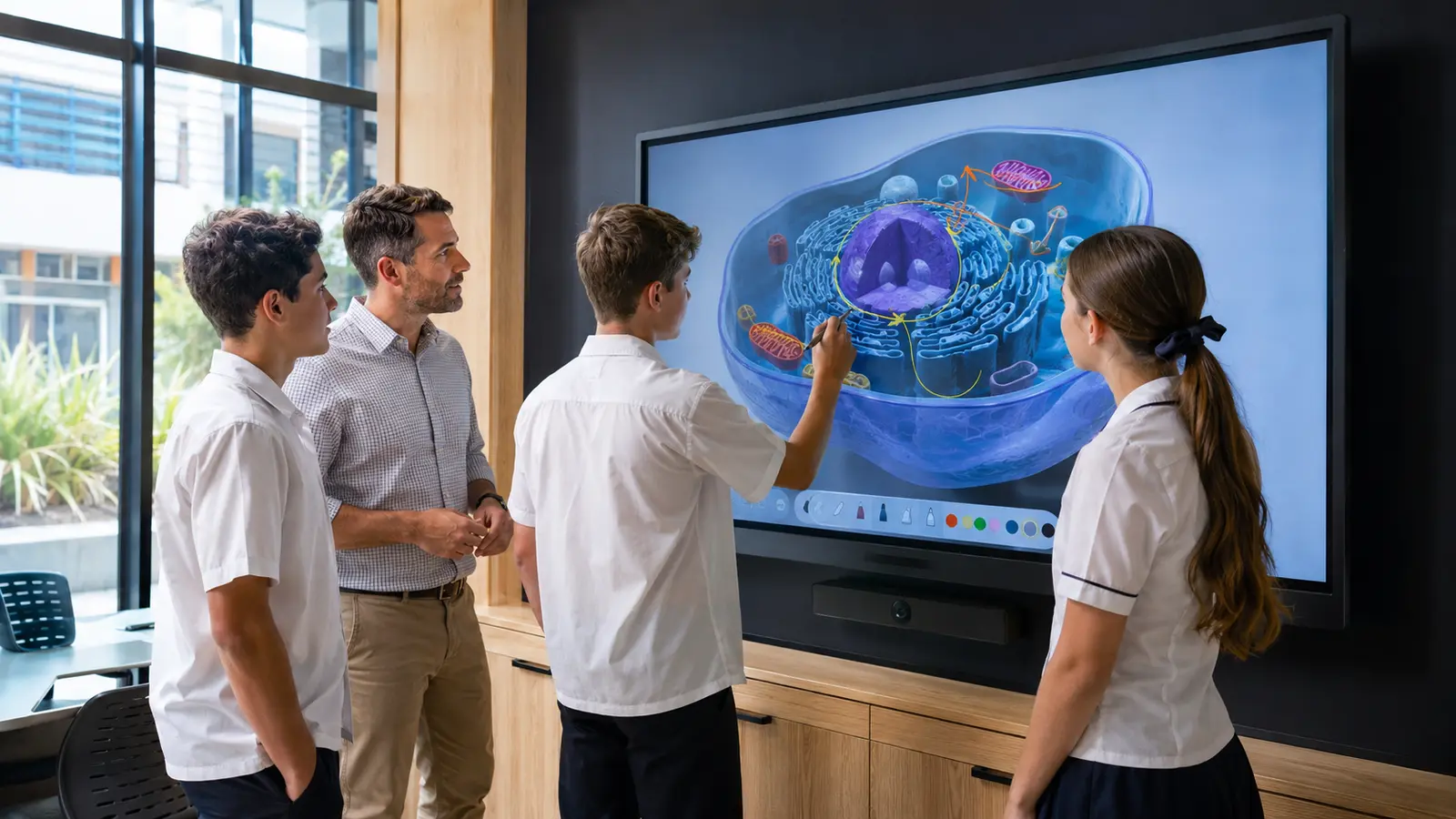
A modern interactive display is generally the better choice for classrooms, meeting rooms and training spaces that require bright 4K visuals, multi-user touch, digital annotation and straightforward connection to current devices.
A traditional projector-based interactive whiteboard may still suit organisations that already have compatible equipment, need a particularly large projected image or want to extend the life of an established classroom system.
The terminology can be confusing because “interactive whiteboard”, “smart board”, “interactive panel” and “interactive display” are often used interchangeably. Buyers should compare the underlying technology rather than relying on the product name alone.
Whiteboards and Pinboards offers a range of interactive whiteboards and electronic displays for Australian education, corporate and training environments.
1. Interactive Whiteboard vs Interactive Display at a Glance
Choose a projector-based interactive whiteboard when:
• Compatible projectors, computers and mounting infrastructure are already installed
• A very large projected image is required
• The room’s lighting can be controlled
• Users are already trained on the existing system
• Reusing current equipment provides acceptable value
• The organisation is not yet ready for a full panel replacement
Choose an interactive display when:
• Bright, high-resolution content is important
• The room receives substantial ambient light
• Several people may write or interact simultaneously
• Digital annotation and content sharing are routine
• A simpler all-in-one installation is preferred
• The display will support video meetings or hybrid learning
• Modern connectivity and device management are required
• The organisation wants to reduce reliance on projector alignment and calibration
Choose a traditional whiteboard when:
• The room mainly needs handwriting and diagramming
• Users do not need digital content or collaboration tools
• The board must remain available without power or software
• Purchase simplicity is more important than advanced functionality
The best option depends on what users need to accomplish, not which product has the longest feature list.
2. Understand the Terminology Before Comparing Products
An interactive whiteboard traditionally refers to a touch-sensitive board that works with a projector and connected computer. The projector places the computer image onto the board, while the board detects input from a finger, stylus or electronic pen.
An interactive display is a large flat-panel screen with touch functionality built into the display itself. It produces the image without requiring a separate projector.
However, current retailers, manufacturers and buyers often use “interactive whiteboard” as a broad category term that includes modern flat panels.
You may encounter names such as:
• Interactive whiteboard
• Interactive flat-panel display
• Interactive panel
• Touchscreen display
• Digital whiteboard
• Smart board
• Smart classroom display
• Collaboration display
• Electronic whiteboard
These names do not confirm whether a product:
• Requires a projector
• Contains a built-in operating system
• Needs an external computer
• Supports multiple touch points
• Includes a camera or microphones
• Connects to a network
• Runs applications independently
Always review the actual specification.
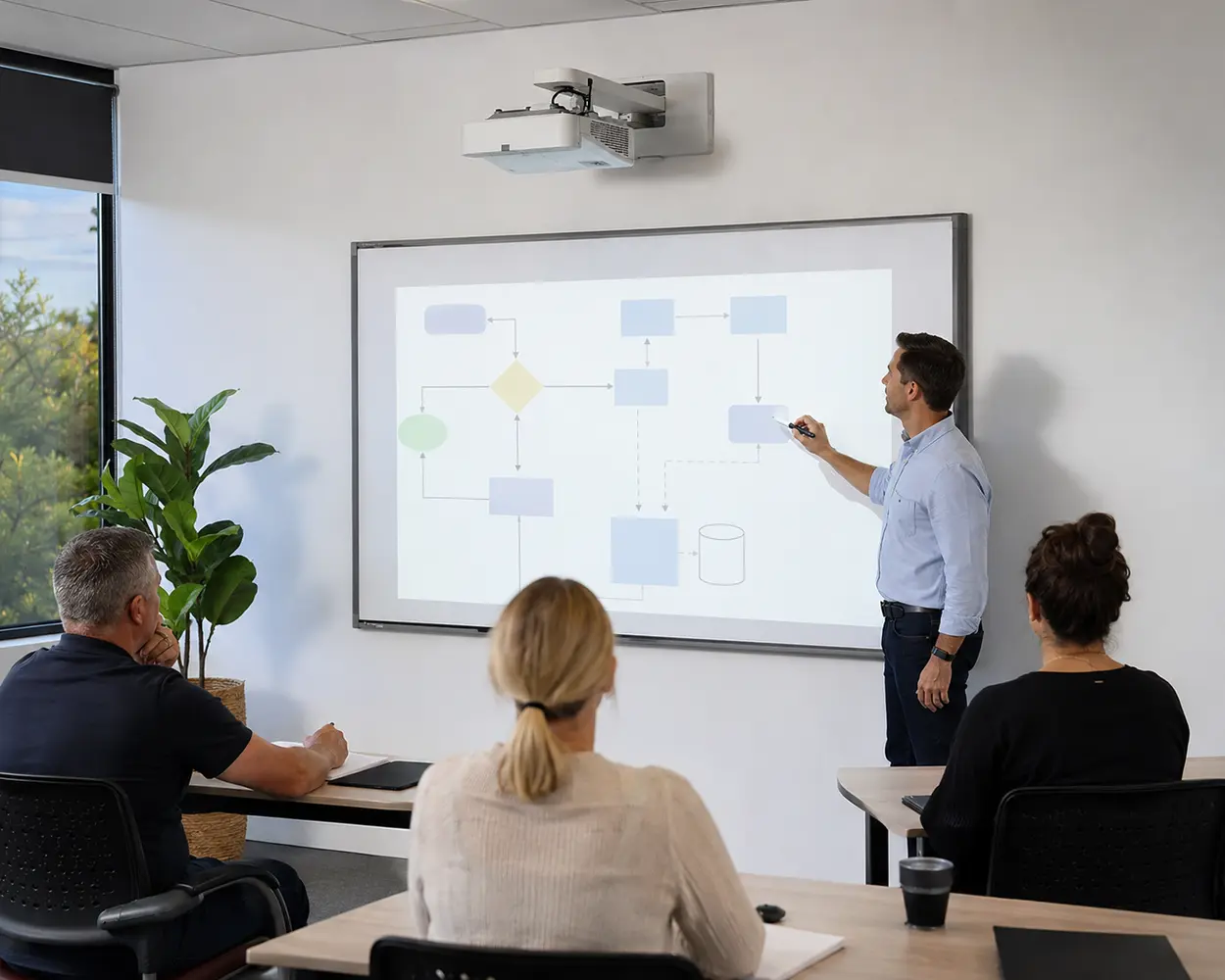
3. What Is a Projector-Based Interactive Whiteboard?
A projector-based interactive whiteboard commonly combines:
• A large touch-sensitive board
• A ceiling-mounted or wall-mounted projector
• A connected computer
• Interactive whiteboard software
• A stylus, electronic pen or touch input system
• Cabling between the components
The projector displays the computer image on the board. User input on the board controls or annotates the content shown by the computer.
These systems became common in schools because they combined a large presentation area with interactive teaching tools. They may remain useful where the complete system is already installed and continues to meet user requirements.
Potential advantages include:
• Large image sizes
• Familiar workflows for existing users
• Continued use of installed equipment
• Compatibility with established lesson files or software
• A physical board surface that may serve other functions, depending on the model
Potential limitations include:
• Several separate components
• Projector alignment requirements
• Calibration between the image and touch surface
• Reduced image contrast in bright rooms
• Shadows when users stand between the projector and board
• Projector maintenance requirements
• More cabling and possible points of failure
• Dependence on a connected computer
The exact performance depends on the projector, board, computer, software and room rather than the interactive board alone.
4. What Is an Interactive Display?
An interactive display combines the visible image and touch surface within one flat-panel unit.
The panel normally functions like a large touchscreen monitor. Depending on the model, it may also include:
• Speakers
• Microphones
• Cameras
• Wireless screen sharing
• Whiteboarding software
• Device-management tools
• Internal storage
• A built-in operating system
• An optional slot-in computer
• Multiple HDMI and USB connections
• USB-C connectivity
• User profiles and sign-in options
Modern interactive displays are available for classrooms, universities, training facilities, meeting rooms and other collaborative environments.
Some models are all-in-one systems with a built-in operating system. Others are operating-system agnostic and require a connected laptop, external computer or optional computing module.
For example, the Promethean ActivPanel LE currently combines a 4K touchscreen with Android, up to 40 touch points and multiple display sizes. The specifications for other Promethean models differ, so the precise computing arrangement must be checked before purchase.
5. Compare Image Quality and Room Lighting
Image visibility is one of the most important differences between the technologies.
Projector-Based Interactive Whiteboards
A projector reflects light from the board surface. Image quality can therefore be affected by:
• Ambient daylight
• Ceiling lighting
• Projector brightness
• Projection distance
• Board condition
• Image size
• Projector alignment
• Lamp or laser performance
• People standing in the light path
Increasing the projected image size can also reduce the brightness visible on the board.
A suitable projector can still produce a useful classroom or training image, particularly where room lighting is controlled.
Interactive Displays
An interactive display produces its image through a backlit flat-panel screen rather than projecting onto another surface.
This generally provides:
• More consistent brightness
• Stronger contrast in normally lit rooms
• Sharper text and fine detail
• No projected shadow across the content
• No image alignment between separate projector and board components
Many current commercial interactive displays use 4K UHD resolution. This can be useful for detailed spreadsheets, technical drawings, diagrams, small interface elements and content viewed from across a room.
Resolution alone does not determine visibility. Screen size, viewing distance, brightness, glare control, content design and room layout also matter.
6. Compare Writing and Touch Performance
Both technologies can support digital writing, but the experience varies significantly between products.
Check:
• Number of simultaneous touch points
• Stylus support
• Finger-touch capability
• Palm rejection
• Palm erase
• Pen and touch differentiation
• Writing latency
• Touch accuracy
• Surface friction
• Annotation software
• Whether several users can work at once
A projector-based system may need recalibration if the projector or board alignment changes. A flat-panel display integrates the image and touch layer within the same unit, removing this particular alignment requirement.
Modern interactive panels may support many simultaneous touch points, allowing several students or meeting participants to write at the same time.
That capability only provides value when the room and activity actually support multi-user work. A presentation space where one person controls slides may not need the same touch specification as a collaborative classroom.
7. Decide Between Built-In and External Computing
Not every interactive display operates independently.
Interactive panels generally fall into three computing arrangements.
Built-In Operating System
An all-in-one display includes an operating system and can run supported applications without a separate computer.
Potential advantages include:
• Faster access to common tools
• Fewer visible devices
• Simplified everyday operation
• Built-in whiteboarding and sharing functions
• Consistent experience across rooms
Buyers should confirm:
• Operating-system version
• Application compatibility
• Security-update policy
• User authentication
• Storage capacity
• Device-management support
• Expected software support period
Operating-System-Agnostic Display
An operating-system-agnostic panel functions as an interactive display but relies on an external laptop, desktop computer or optional computing module for applications.
Potential advantages include:
• Greater control over the computing platform
• Alignment with existing Windows, ChromeOS, Android or macOS environments
• Ability to update or replace the computer separately
• Reduced dependence on the display’s embedded operating system
The connected device, cables and software must form part of the complete project specification.
Optional Slot-In Computer
Some displays accept an OPS or other modular computing device. This can provide an integrated appearance while allowing the computing component to be selected or replaced separately.
Do not assume that every interactive panel includes the computer required to run applications. Confirm what is included before comparing prices.
8. Review Software Compatibility
The hardware must support the software people already use.
Before purchasing, identify:
• Existing lesson-file formats
• Presentation software
• Whiteboarding applications
• Video-conferencing platforms
• Cloud-storage services
• Learning-management systems
• Office productivity tools
• Specialist industry software
• User authentication requirements
• Device-management platforms
A technically advanced display can create frustration if teachers or staff cannot open established content or use familiar applications.
Schools should test:
• Existing interactive lessons
• Teacher sign-in workflows
• Student collaboration activities
• Cloud-drive access
• Screen recording
• Annotation over external content
• Guest-teacher access
Workplaces should test:
• Microsoft Teams or other meeting platforms
• Wireless presentation tools
• Laptop connection
• Guest-device access
• Digital whiteboarding
• Remote-participant annotation
• File sharing
• Room booking and meeting workflows
Software licensing may be separate from the display purchase. Confirm ongoing subscription or support requirements where applicable.
9. Compare Connectivity and Content Sharing
Connectivity determines how easily users can move from a laptop, tablet or cloud service to the room display.
Review:
• HDMI inputs
• USB connections
• USB-C video and power delivery
• Wireless screen sharing
• Wi-Fi compatibility
• Bluetooth
• Network connection
• AirPlay support
• Miracast support
• Google Cast support
• Camera connections
• Microphone inputs
• Audio outputs
• Document-camera compatibility
Do not select a display based solely on the number of ports. Confirm whether the required functions work with the organisation’s actual devices and security settings.
Wireless sharing can reduce meeting setup time, but IT teams may need to configure network access, user permissions or approved applications.
A reliable wired connection should also be considered where presentations cannot depend on local wireless conditions.
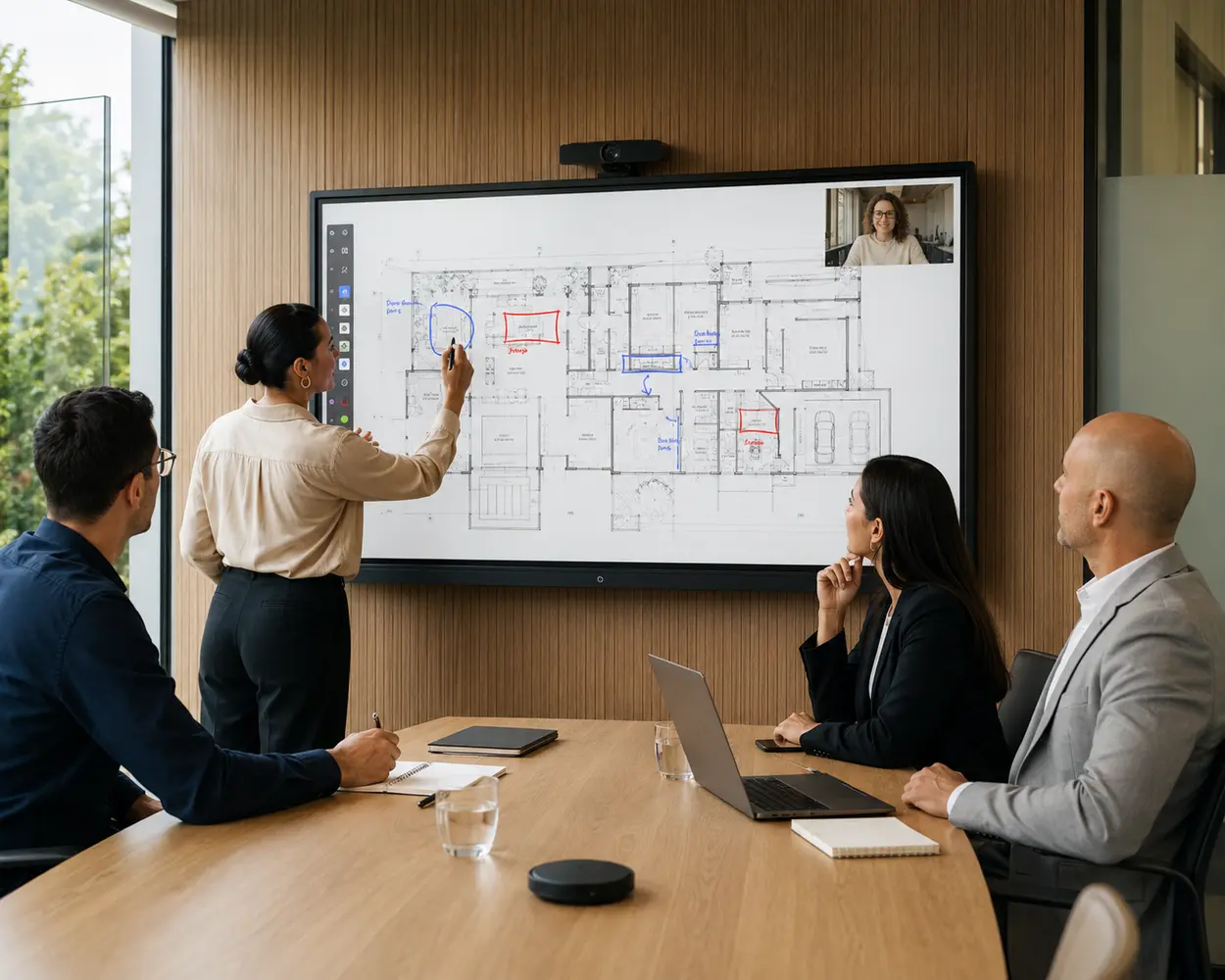
10. Consider Hybrid Meetings and Remote Learning
A projector-based interactive whiteboard can display a video meeting through its connected computer, but cameras, microphones and speakers are usually separate components.
An interactive display may provide a more integrated hybrid-collaboration setup when it includes or supports:
• A mounted camera
• Microphone arrays
• Built-in speakers
• Wireless content sharing
• On-screen annotation
• Split-screen content
• Remote-participant video
• Screen recording
• Shared digital whiteboards
The BenQ Meeting Display is an example of a corporate-focused interactive display with an integrated camera, microphone array, speakers, touchscreen annotation and wireless sharing capabilities.
That level of integration may suit boardrooms, project rooms and hybrid meeting spaces. It may be unnecessary for a classroom that already uses separate conferencing equipment or does not conduct remote sessions.
11. Choose the Right Screen Size
A larger screen is not automatically better.
The display must be:
• Visible from the back of the room
• Reachable by intended users
• Appropriate for the wall
• Large enough for the content
• Positioned without obstructing circulation
• Compatible with the mounting system
• Accessible for people of different heights
Common commercial interactive-display sizes include approximately:
• 55 inches
• 65 inches
• 75 inches
• 86 inches
The available sizes vary by product.
Consider:
• Room depth
• Number of viewers
• Smallest text or detail displayed
• Seating arrangement
• Front-row distance
• Presenter position
• Whether two people will work side by side
• Mounting height
• Required accessibility
A 65-inch display may suit a small meeting room but feel inadequate in a large classroom. An 86-inch panel may improve visibility but require more wall area, more careful access planning and a higher-capacity mounting system.
Projectors can provide larger images, but the room, brightness and installation geometry must support the selected image size.
12. Compare Installation Requirements
Projector-Based Interactive Whiteboard Installation
A projector system may require:
• Secure wall mounting for the board
• Ceiling or wall mounting for the projector
• Power for multiple components
• Video and control cabling
• Image alignment
• Touch calibration
• Connection to a computer
• Suitable throw distance
• Clear sightlines between projector and board
Installation quality affects both the displayed image and touch accuracy.
Interactive Display Installation
A flat-panel display generally requires:
• A wall or mobile mount rated for the panel
• Suitable wall structure
• Power and data access
• Safe lifting and handling
• Correct mounting height
• Cable management
• Network configuration
• Connected or slot-in computing where required
Large interactive displays are substantial pieces of equipment. Delivery access should be checked before ordering.
Confirm:
• Doorway widths
• Corridor turns
• Lift dimensions
• Stair restrictions
• Final wall construction
• Loading access
• Number of installers required
A mobile trolley can provide flexibility, but its load rating, footprint, stability, height adjustment and doorway clearance must match the panel.
13. Compare Maintenance and Ongoing Ownership
Purchase price is only one part of the cost.
Projector-Based Systems May Require
• Projector cleaning
• Filter servicing on applicable models
• Lamp replacement on lamp-based projectors
• Alignment checks
• Recalibration
• Cable replacement
• Maintenance across several components
• Ongoing computer support
Laser projectors may reduce some maintenance requirements, but the full system still contains separate board, projector and computing components.
Interactive Displays May Require
• Software and firmware updates
• Operating-system support
• Network management
• Touchscreen cleaning
• Computing-module replacement
• Camera or peripheral support
• Appropriate surge protection
• Warranty and service planning
An interactive display may simplify the physical system, but an all-in-one panel can introduce software-lifecycle considerations.
If the embedded operating system stops receiving required updates before the display hardware reaches the end of its useful life, the organisation may need another computing solution.
An operating-system-agnostic panel can allow the computer to be updated separately, but it may require more planning and external hardware from the outset.
14. Which Is Better for Classrooms?
A modern interactive display will generally be the stronger choice for a new classroom installation when teachers need:
• Bright digital content
• Multi-user touch
• Digital annotation
• Lesson-file access
• Video playback
• Wireless sharing
• Remote-learning support
• Integrated audio
• Reliable visibility under normal classroom lighting
Projector-based interactive whiteboards may remain suitable where:
• Existing equipment is still functional
• Teachers rely on established software
• Replacement budgets are limited
• The projected image needs to be particularly large
• The room already supports controlled lighting
• The system remains reliable and supportable
Before a school replaces multiple rooms, test the proposed panel with real teachers and existing lesson material.
A pilot should evaluate:
• Startup time
• Login process
• Writing quality
• Application access
• Student interaction
• Screen visibility
• Audio
• Wireless sharing
• Classroom management
• IT administration
• Teacher training requirements
The display should reduce friction during a lesson rather than adding another technical process.
15. Which Is Better for Meeting Rooms?
Interactive displays generally suit contemporary meeting rooms where teams need to:
• Present from several devices
• Annotate plans or documents
• Run video meetings
• Share content wirelessly
• Capture decisions
• Collaborate with remote participants
• Save and distribute marked-up material
A basic meeting room may not require full interactive capability.
If users only need to show slides or join video calls, a non-interactive commercial display may be sufficient. If they mainly brainstorm by hand, a conventional office whiteboard may provide better value and remain instantly available.
Interactive functionality becomes more valuable when people will actively use the screen rather than simply watch it.
Ask:
• Will presenters write directly on the display?
• Will annotations be saved or shared?
• Will remote participants collaborate?
• Will multiple users interact simultaneously?
• Does the room need an integrated camera and microphones?
• Will guest devices connect regularly?
Avoid paying for touch functionality that the meeting workflow will not use.
16. Include IT, Security and Device Management
An interactive display is part of the organisation’s technology environment.
IT teams should review:
• Operating-system support
• Security-update policy
• Network requirements
• User authentication
• Guest access
• Application permissions
• Cloud-storage access
• Remote device management
• Data retention
• Camera and microphone controls
• Screen-sharing security
• Warranty support
• End-of-life planning
Schools may also need to consider:
• Student account access
• Teacher profiles
• Content filtering
• Privacy requirements
• Centralised panel management
• Consistency across classrooms
• Relief-teacher access
• Restricted application installation
A panel that works well in a demonstration may still be unsuitable for fleet deployment if it cannot be managed within existing IT policies.
17. Consider Accessibility and Everyday Usability
Technology should remain usable for the full range of presenters, teachers and students.
Review:
• Mounting height
• Reach to the upper corners
• Height-adjustable mounting options
• Stylus size and grip
• Touch sensitivity
• Interface scaling
• Text size
• Glare
• Viewing angles
• Colour contrast
• Audio volume
• Captioning support
• Physical access around the display
A screen that is visible from the back of the room may still be mounted too high for shorter users to reach.
For collaborative activities, the panel should allow people to work side by side without blocking access or creating congestion.
Mobile or height-adjustable mounts can improve flexibility, but they must remain stable and suitable for the panel’s weight.
18. Avoid Common Buying Mistakes
Treating Every Interactive Whiteboard as the Same Technology
Confirm whether the product is projector-based or a flat-panel display.
Assuming Every Panel Has a Built-In Operating System
Some displays require an external computer or optional computing module.
Comparing Only Screen Size
Visibility also depends on resolution, brightness, viewing distance and content design.
Ignoring Existing Software
Confirm that current lessons, files and applications remain usable.
Forgetting Installation Access
Large panels must reach the room safely before they can be mounted.
Choosing Features Users Will Not Adopt
Cameras, touch points and advanced applications provide little value without a defined workflow.
Excluding IT From the Purchase
Security, networking, device management and software support should be reviewed before deployment.
Failing to Budget for Mounting and Accessories
The panel may require a wall bracket, trolley, camera, computing module, cables or other accessories.
Assuming Wireless Sharing Will Work Automatically
Network policies and device compatibility may require configuration.
Ignoring Training
Teachers and staff need enough confidence to use the interactive features during real lessons and meetings.
Replacing a Working System Without Assessing the Use Case
A new display should solve a defined problem rather than simply replace equipment because newer technology exists.
Interactive Whiteboard vs Interactive Display Buying Checklist
Before ordering, confirm:
• Is the proposed product projector-based or a flat panel?
• What activities will users perform on it?
• Is touch input genuinely required?
• How many simultaneous users are expected?
• What screen size suits the viewing distance?
• Is 4K detail important for the content?
• Does the room receive substantial daylight?
• Is a built-in operating system required?
• Will the panel use an external or slot-in computer?
• Which applications and file formats must work?
• Which devices need to connect?
• Is wireless sharing required?
• Are cameras, microphones and speakers required?
• What video-conferencing platform will be used?
• What network and security approvals are needed?
• Can IT manage the display remotely?
• What software licences are included?
• How long will operating-system updates be provided?
• Does the wall support the complete product weight?
• Is wall mounting or a mobile trolley more suitable?
• Can the panel pass through doors, corridors and lifts?
• Is height adjustment required?
• What warranty and service support are available?
• What training will teachers or staff require?
• Would a traditional whiteboard meet the actual need more economically?
Conclusion
Choose a modern interactive display when users need a bright, high-resolution touchscreen for digital annotation, content sharing, collaborative learning or hybrid meetings.
Choose a projector-based interactive whiteboard when an existing system remains effective, a particularly large projected image is required or current infrastructure makes continued use commercially sensible.
Choose a traditional whiteboard when the room primarily needs reliable handwriting and does not require digital collaboration.
The most important step is to look beyond the category name. Confirm the display technology, computing arrangement, software compatibility, connectivity, screen size, installation requirements and ongoing support before comparing prices.